3. Sprites and assets
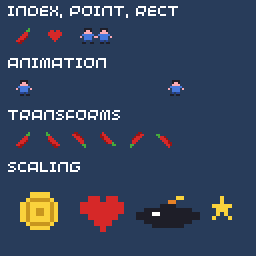
Most games draw with sprites: small images cut from a larger spritesheet. This lesson packs a sheet into the game, then draws, animates, flips, rotates and scales sprites from it.
The spritesheet
The examples share this sheet, docs/examples/shared/sprites.png, shown here at 4× size:

It's an ordinary PNG with transparency, 128×8 pixels, holding sixteen 8×8 sprites. Sprites are numbered from the top-left, along each row: the chili is sprite 0, the player is 1 and 2, the heart 3, and so on.
The SDK works in 8×8 cells. Bigger sprites are blocks of cells, like a 16×16 sprite made of 2×2 cells. Keep sheets 128 pixels wide (16 cells per row) so they also work with tile maps.
Packing assets into the game
Images aren't loaded from files at run time. The 32blit tool converts them into C++ arrays at build time, which end up in flash with your code. List them in assets.yml:
and add the file to your build in CMakeLists.txt:
The build creates assets.cpp and assets.hpp. Include the header to use the data:
The asset pipeline guide covers palettes, transparency colours, maps, fonts and raw data.
Drawing sprites
// Sprites: draw from a spritesheet, animate, flip, rotate and scale.
//
// The sheet is assets/sprites.png, a grid of 8x8 sprites packed into the
// game by assets.yml. Sprite 0 is the top-left one, counting along each row.
#include "32blit.hpp"
#include "assets.hpp"

using namespace blit;

// sprite indices in the sheet
enum Sprite : uint16_t {
  CHILI = 0, PLAYER_WALK_1 = 1, PLAYER_WALK_2 = 2, HEART = 3, COIN = 4, BOMB = 5, STAR = 6
};

void init() {
  set_screen_mode(ScreenMode::hires);

  // load the packed image into a surface and make it the active spritesheet
  screen.sprites = Surface::load(asset_sprites);
}

void update(uint32_t time) {
}

void render(uint32_t time) {
  screen.pen = Pen(40, 60, 90);
  screen.clear();

  screen.pen = Pen(255, 255, 255);
  screen.text("Index, Point, Rect", minimal_font, Point(4, 2));

  // three ways to pick a sprite: by index...
  screen.sprite(CHILI, Point(8, 14));
  // ...by its column and row in 8x8 units...
  screen.sprite(Point(3, 0), Point(24, 14));
  // ...or a block of several sprites as one (here 2x1 sprites wide)
  screen.sprite(Rect(1, 0, 2, 1), Point(40, 14));

  screen.text("Animation", minimal_font, Point(4, 28));
  // swap between two frames every 200 ms
  uint16_t frame = (time / 200) % 2 ? PLAYER_WALK_1 : PLAYER_WALK_2;
  screen.sprite(frame, Point(8, 40));

  // walk across the screen, flipping to face the direction of travel
  int t = (time / 16) % 200;
  int x = t < 100 ? t : 200 - t;
  screen.sprite(frame, Point(20 + x, 40), t < 100 ? SpriteTransform::NONE : SpriteTransform::HORIZONTAL);

  screen.text("Transforms", minimal_font, Point(4, 54));
  const SpriteTransform transforms[] = {
    SpriteTransform::NONE, SpriteTransform::HORIZONTAL, SpriteTransform::VERTICAL,
    SpriteTransform::R90, SpriteTransform::R180, SpriteTransform::R270
  };
  for(int i = 0; i < 6; i++)
    screen.sprite(CHILI, Point(8 + i * 14, 66), transforms[i]);

  screen.text("Scaling", minimal_font, Point(4, 80));
  // scale around the sprite's centre (origin 4,4) so it grows in place
  float scale = 1.0f + 1.5f * (0.5f + 0.5f * sinf(time / 300.0f));
  screen.sprite(COIN, Point(20, 106), Point(4, 4), scale);
  screen.sprite(HEART, Point(52, 106), Point(4, 4), 3.0f);
  screen.sprite(BOMB, Point(84, 106), Point(4, 4), Vec2(4.0f, 2.0f));
  screen.sprite(STAR, Point(112, 106), Point(4, 4), 2.0f);
}
Loading the sheet
Surface::load unpacks the image into a new surface in RAM. Setting screen.sprites makes it the sheet that screen.sprite() draws from. Load once, in init(): loading allocates memory each time.
If your game has several sheets, keep each Surface * and switch screen.sprites between them as you draw.
Choosing a sprite
screen.sprite(which, position) draws a sprite with its top-left corner at position. There are three ways to say which sprite:
which |
Means |
|---|---|
5 |
sprite number 5, counting along the rows |
Point(5, 0) |
the cell at column 5, row 0 |
Rect(1, 0, 2, 2) |
a block of cells, 2 wide and 2 tall, starting at column 1, row 0: a 16×16 sprite |
Animation
Animation is choosing a different sprite as time passes:
For longer animations, keep the frames in an array:
Flipping and rotating
The last argument is a SpriteTransform: HORIZONTAL and VERTICAL flips, and R90, R180, R270 rotations. Flip a character horizontally to make them face the other way, so you only need to draw them facing one way.
Scaling
With an origin and a scale, the sprite is scaled around the origin, measured in pixels from the sprite's top-left corner. Use the middle of the sprite (Point(4, 4) for an 8×8) to grow it in place; the position is then where the middle goes.
screen.sprite(COIN, Point(20, 106), Point(4, 4), 2.0f);           // twice the size
screen.sprite(BOMB, Point(84, 106), Point(4, 4), Vec2(4.0f, 2.0f)); // stretched
Scaling looks best with whole-number factors on pixel art.
Blitting whole images
screen.blit() copies any rectangle of one surface onto another, without the 8×8 grid. It's how you draw a background picture or a title image:
Surface *title = Surface::load(asset_title);
...
screen.blit(title, Rect(0, 0, 128, 64), Point(0, 20));
stretch_blit() does the same while resizing to a destination rectangle. See Surface.
Memory
A loaded sheet is uncompressed: an 8-bit paletted image takes one byte per pixel, plus its palette. A 128×128 sheet is 16 KB. That matters on the console, where a game has 448 KB of RAM in total. If a sheet never changes, Surface::load_read_only() points straight at the data in flash instead of copying it (for unpacked images only; set packed: no on the asset).
Try it
- Draw a row of hearts for lives, as a game's HUD would.
- Make the walking player in the example move up and down too, and use
R90/R270so they face their direction. - Draw your own 8×8 sprite in an image editor, add it to the sheet, and show it.
Next: text.