1. The game loop
Every game is built around three functions that the SDK calls for you. This lesson explains what each one is for, how the screen works, and how to draw on it.
Hello, VGC Zero
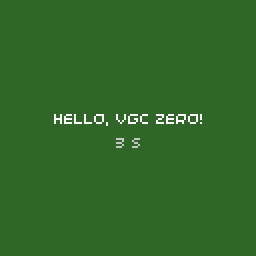
Here is the smallest complete game. It fades the background through the colours of the rainbow and shows how long it has been running.
// Hello World: the smallest complete game.
//
// Every game provides three functions: init() runs once at start-up,
// update() runs 100 times a second to move the game on, and render()
// runs once per frame to draw it.
#include "32blit.hpp"

using namespace blit;

void init() {
  // 128x128 pixels, the full VGC Zero screen
  set_screen_mode(ScreenMode::hires);
}

void update(uint32_t time) {
  // nothing to update yet
}

void render(uint32_t time) {
  // fade the background through the colour wheel, one turn every 10 seconds
  float hue = (time % 10000) / 10000.0f;
  screen.pen = hsv_to_rgba(hue, 0.6f, 0.4f);
  screen.clear();

  screen.pen = Pen(255, 255, 255);
  screen.text("Hello, VGC Zero!", minimal_font, Point(64, 60), true, TextAlign::center_center);

  screen.pen = Pen(200, 200, 200);
  screen.text(std::to_string(time / 1000) + " s", minimal_font, Point(64, 72), true, TextAlign::center_center);
}
init, update and render
You don't write a main() function. The SDK has one, and it calls yours:
void init()- Called once when the game starts. Load your assets, set the screen mode and set up your starting state here.
void update(uint32_t time)- Called 100 times a second, every 10 ms, whatever the frame rate. Read input, move things and run your game logic here. Because the rate is fixed, you can move things by a fixed amount per update: 1 pixel per update is always 100 pixels a second.
void render(uint32_t time)- Called once per frame, as fast as the screen can be refreshed. Draw everything here, and don't change the game's state: render may run more or less often than update.
time is the number of milliseconds since the game started. It's the same clock as blit::now().
sequenceDiagram
    participant SDK
    participant Game
    SDK->>Game: init()
    loop every frame
        SDK->>Game: update(time) × however many 10 ms steps have passed
        SDK->>Game: render(time)
    end
If a frame takes 25 ms to draw, the SDK calls update() two or three times before the next render() to catch up, so the game runs at the same speed even when the frame rate drops.
Keep logic in update, drawing in render
It's tempting to move things in render(), but then your game runs faster on a fast screen and slower on a slow one. Anything that changes state belongs in update().
The screen
screen is a Surface: a block of pixels with a current colour (pen) and functions to draw on it. What you draw in render() is shown when it returns.
The VGC Zero's display is 128×128 pixels. Pick how much of it to use with set_screen_mode(), normally in init():
| Mode | Size | Notes |
|---|---|---|
ScreenMode::lores |
64×64 | every pixel is shown as 2×2; the default |
ScreenMode::hires |
128×128 | the whole screen at full detail |
There is also ScreenMode::hires_palette, an 8-bit paletted mode, but the VGC Zero's display doesn't support it; stick to lores and hires.
Coordinates start at the top-left corner, (0, 0), with x to the right and y down. In hires the bottom-right pixel is (127, 127). Use screen.bounds.w and screen.bounds.h rather than hard-coding the size if your game might run in more than one mode.
Colours
Set screen.pen to a Pen before drawing. A pen is red, green, blue and alpha (opacity), each 0–255:
screen.pen = Pen(255, 0, 0);          // red
screen.pen = Pen(255, 255, 255, 128); // half-transparent white
screen.pen = hsv_to_rgba(0.33f, 1.0f, 1.0f); // hue, saturation, value, each 0-1: green
Everything you draw uses the current pen until you change it.
Drawing shapes
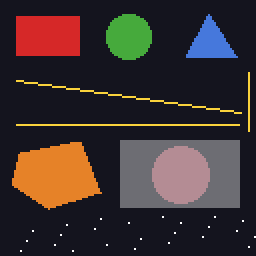
The shapes example draws every primitive the SDK has:
// Shapes: every drawing primitive on one screen.
#include "32blit.hpp"

using namespace blit;

void init() {
  set_screen_mode(ScreenMode::hires);
}

void update(uint32_t time) {
}

void render(uint32_t time) {
  screen.pen = Pen(20, 20, 30);
  screen.clear();

  // filled rectangle
  screen.pen = Pen(214, 40, 40);
  screen.rectangle(Rect(8, 8, 32, 20));

  // circle, given a centre and a radius
  screen.pen = Pen(70, 170, 60);
  screen.circle(Point(64, 18), 11);

  // triangle
  screen.pen = Pen(70, 120, 220);
  screen.triangle(Point(92, 28), Point(104, 6), Point(118, 28));

  // lines, and fast horizontal and vertical spans
  screen.pen = Pen(250, 210, 60);
  screen.line(Point(8, 40), Point(120, 56));
  screen.h_span(Point(8, 62), 112);
  screen.v_span(Point(124, 36), 30);

  // polygon from a list of points
  screen.pen = Pen(230, 130, 40);
  screen.polygon({Point(10, 76), Point(40, 70), Point(50, 96), Point(24, 104), Point(6, 92)});

  // single pixels: a small starfield that drifts left
  screen.pen = Pen(255, 255, 255);
  for(int i = 0; i < 24; i++) {
    int x = (i * 37 + 128 - (time / 40) % 128) % 128;
    screen.pixel(Point(x, 108 + (i * 7) % 18));
  }

  // alpha: a translucent rectangle over the shapes underneath
  screen.pen = Pen(255, 255, 255, 96);
  screen.rectangle(Rect(60, 70, 60, 34));

  // global alpha fades everything drawn after it
  screen.alpha = 128;
  screen.pen = Pen(250, 170, 180);
  screen.circle(Point(90, 87), 14);
  screen.alpha = 255;
}
| Call | Draws |
|---|---|
clear() |
fills the whole surface (inside the clip rectangle) |
pixel(p) |
one pixel |
rectangle(r) |
a filled rectangle |
circle(centre, radius) |
a filled circle |
line(p1, p2) |
a one-pixel line |
h_span(p, length), v_span(p, length) |
fast horizontal and vertical lines |
triangle(p1, p2, p3) |
a filled triangle |
polygon(points) |
a filled polygon |
Positions are Points (whole-pixel x, y) and areas are Rects (x, y, w, h).
Transparency
A pen's alpha blends what you draw with what's already there: 255 is solid, 0 is invisible. screen.alpha multiplies every drawing operation's alpha, which is useful for fading a whole group of things in or out. Remember to set it back to 255 afterwards.
Clipping
screen.clip is a rectangle that limits all drawing. Set it to draw only inside a window, and set it back to the full screen afterwards:
screen.clip = Rect(10, 10, 50, 50);
screen.pen = Pen(255, 0, 0);
screen.clear();                       // only fills 10,10 to 60,60
screen.clip = Rect(Point(0, 0), screen.bounds);
Time
| Function | Returns |
|---|---|
now() |
milliseconds since the game started |
now_us() |
microseconds, for timing short pieces of code |
us_diff(from, to) |
microseconds between two now_us() values, handling wrap-around |
For anything that happens after a delay or repeats, a Timer is tidier than comparing times yourself.
Random numbers
blit::random() returns a random 32-bit number. Use % to bring it into range:
Always write blit::random() in full. With using namespace blit, a bare random() is ambiguous with the C library's function of the same name, and the code won't compile on Linux.
Try it
- Change the hello world message, and use
fat_fontinstead ofminimal_font. - Draw a sun in the top corner of
shapeswith a circle and eight lines around it. - Make the starfield in
shapesmove twice as fast.
Next: reading input.